
Managing Files
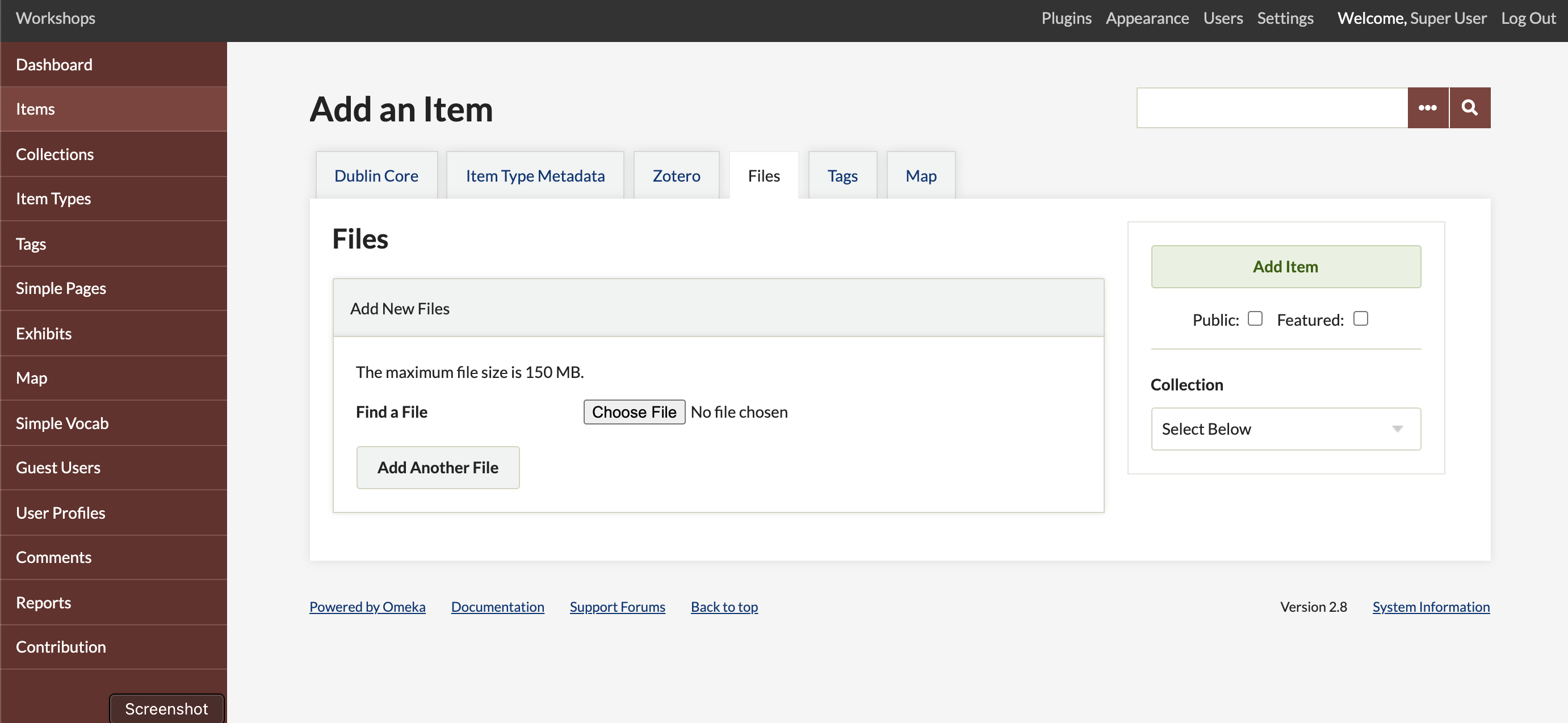
When adding items to your archive, often you will upload one or more files (images, documents, et al) associated with that item.
File Types
Accepted File Extensions
Below is a list of file extensions and MIME Types for Omeka.net. If you are unable to upload a file because of a MIME type error, check this list to be sure the file is accepted. Please note there is a 128mb file size limit for any single file.
File Extensions:
aac, aif, aiff, asf, asx, avi, bmp, c, cc, class, css, divx, doc, docx, exe, gif, gz, gzip, h, ico,
j2k, jp2, jpe, jpeg, jpg, m4a, mdb, mid, midi, mov, mp2, mp3, mp4, mpa, mpe, mpeg, mpg, mpp, odb, odc, odf, odg, odp, ods, odt, ogg, pdf, png, pot, pps, ppt, pptx, qt, ra, ram, rtf, rtx, swf, tar, tif, tiff, txt, wav, wax, wma, wmv, wmx, wri, xla, xls, xlsx, xlt, xlw, zip
Mime Types:
application/msword, application/ogg, application/pdf, application/rtf, application/vnd.ms-access, application/vnd.ms-excel, application/vnd.ms-powerpoint, application/vnd.ms-project, application/vnd.ms-write, application/vnd.oasis.opendocument.chart, application/vnd.oasis.opendocument.database, application/vnd.oasis.opendocument.formula, application/vnd.oasis.opendocument.graphics, application/vnd.oasis.opendocument.presentation, application/vnd.oasis.opendocument.spreadsheet, application/vnd.oasis.opendocument.text, application/x-ms-wmp, application/x-ogg, application/x-gzip, application/x-msdownload, application/x-shockwave-flash, application/x-tar, application/zip, audio/aac, audio/aiff, audio/mid, audio/midi, audio/mp3, audio/mp4, audio/mpeg, audio/mpeg3, audio/ogg, audio/wav, audio/wma, audio/x-aac, audio/x-aiff, audio/x-midi, audio/x-mp3, audio/x-mp4, audio/x-mpeg, audio/x-mpeg3, audio/x-mpegaudio, audio/x-ms-wax, audio/x-realaudio, audio/x-wav, audio/x-wma, image/bmp, image/gif, image/icon, image/jpeg, image/pjpeg, image/png, image/tiff, image/x-icon, image/x-ms-bmp, text/css, text/plain, text/richtext, video/asf, video/avi, video/divx, video/mp4, video/mpeg, video/msvideo, video/ogg, video/quicktime, video/x-ms-asf, video/x-ms-wmv, video/x-msvideo, text/rtf
File Display Order
Once files are added to an item, you may click and drag the files into the preferred display order for both public and admin item pages. This can be done from the Item Edit Page, under the Files tab.
Files with Thumbnails
Thumbnail previews are created for all files types on Omeka.net.
File size limitations
128mb per file.
File Metadata
You may add full Dublin Core metadata for every file uploaded.
You can access the metadata for a file from the record for the item to which it is attached. Either click on the link to File Metadata under the admin/items/show/ page or go to the edit page for the item, click on the File tab, and then click edit, as in the image below.
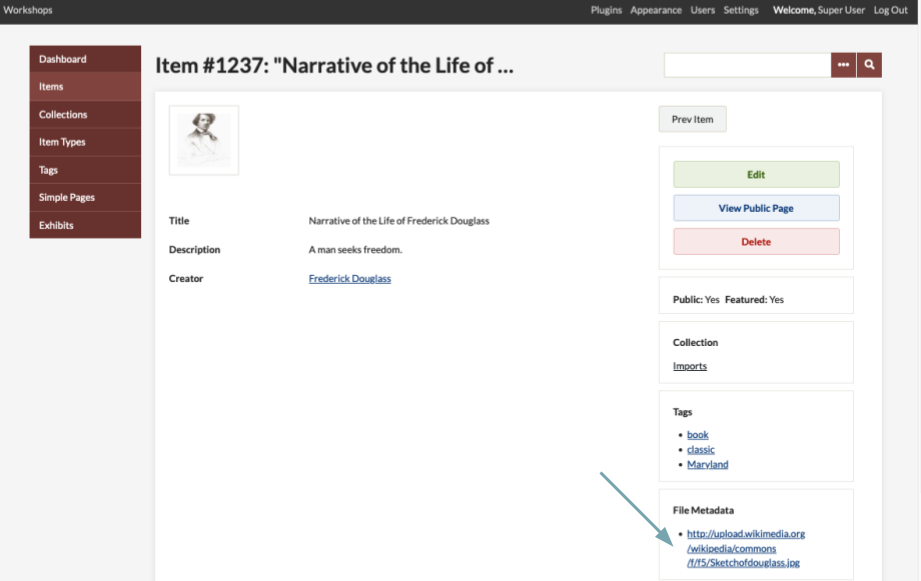
From the File Metadata page, you can edit the metadata for the file and also find links to the various versions of the file (for example, Original and Thumbnail files for an image).
Alt Text
Alternative text (alt){target=_blank} is displayed when an image cannot load. This information is also accessible to screen readers and other accessibility tools for the web. Best practices include using plain language to describe the content of the image without embellishment.
You may input alternative text for individual files by editing the file and drafting the text in the input area to the right of the file metadata. This will load wherever the file and its derivatives are displayed - in the administrative side, as thumbnails in browse and search screens, on the item view page, in exhibits, etc.
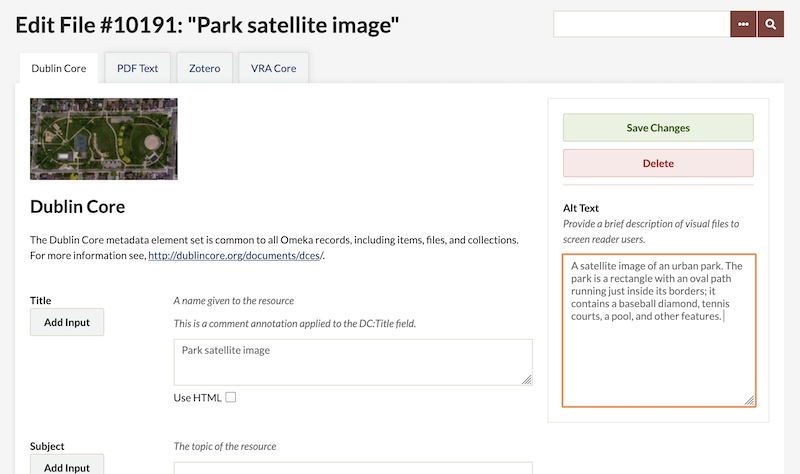
You can also configure a default file element to use for alt text for all image tags (that have a metadata value in that element). This is set in the Appearance Settings. This default will be overridden when text is supplied in the “Alt Text” field.
Back to top